Configure WorkBuddy with UniKey
This guide shows how to use UniKey's OpenAI-compatible API in WorkBuddy. Choose either the visual setup in WorkBuddy or the models.json file method. Both methods use the same UniKey API key and model names.
1. Download and sign in to WorkBuddy
- Download and install WorkBuddy from the official WorkBuddy download page.
- Open WorkBuddy.
- Sign in with WeChat or your mobile phone number.
- Create a UniKey API key at UniKey. Keep it private: do not commit it to Git, share it in chat, or include it in screenshots.
UniKey values you will need
| Setting | Value |
|---|---|
| Provider | Custom |
| API URL | https://www.getunikey.ai/v1/chat/completions |
| API key | Your UniKey API key |
| Model name | A lowercase model ID from the UniKey pricing page |
Use the full /v1/chat/completions URL in WorkBuddy. Model IDs are case-sensitive; copy them in lowercase from the UniKey pricing page.
Method 1: Add a model in WorkBuddy
This is the recommended method for most users.
- In WorkBuddy, open Settings.
- Select Models in the left sidebar.
- Select Add Model.
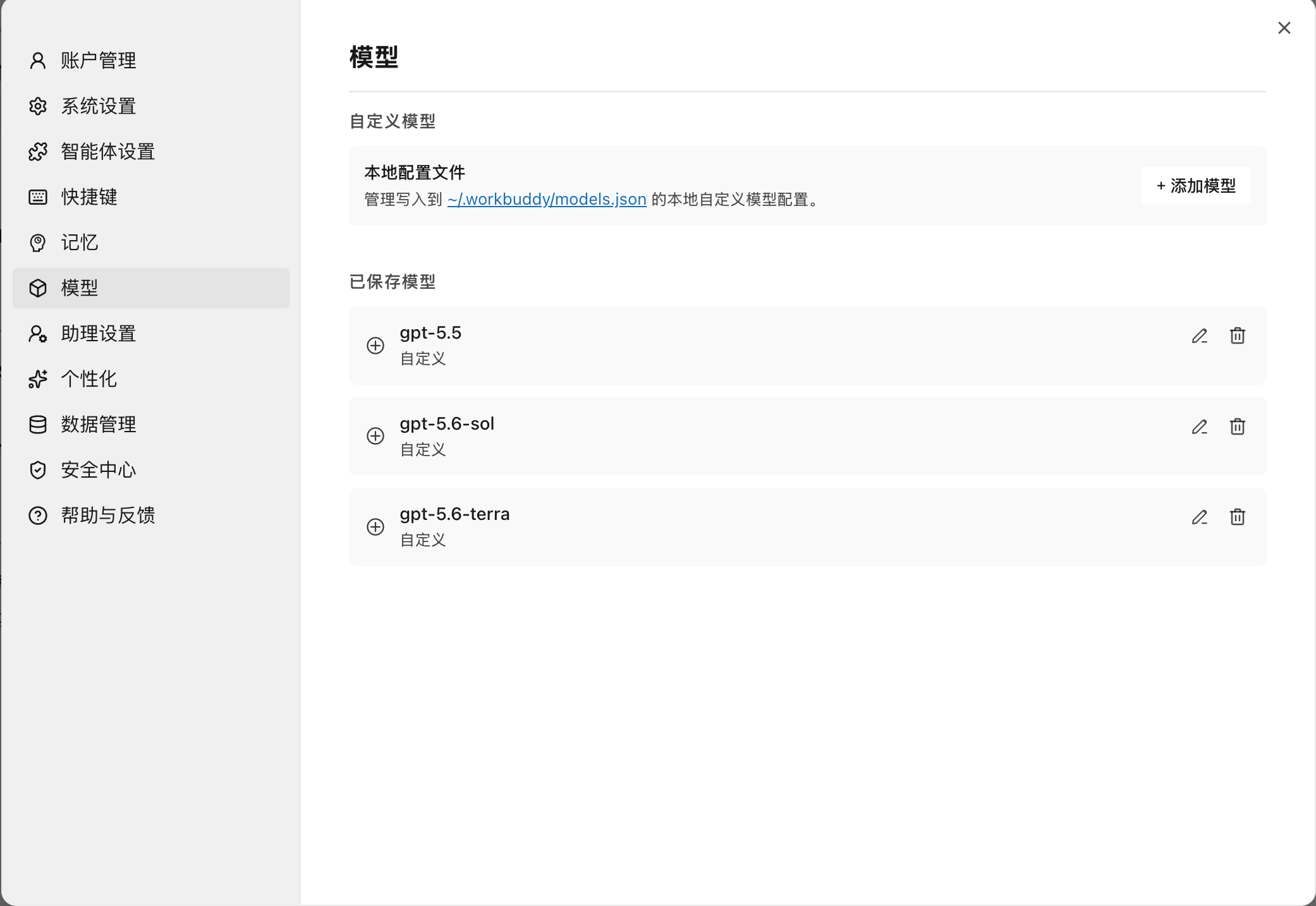
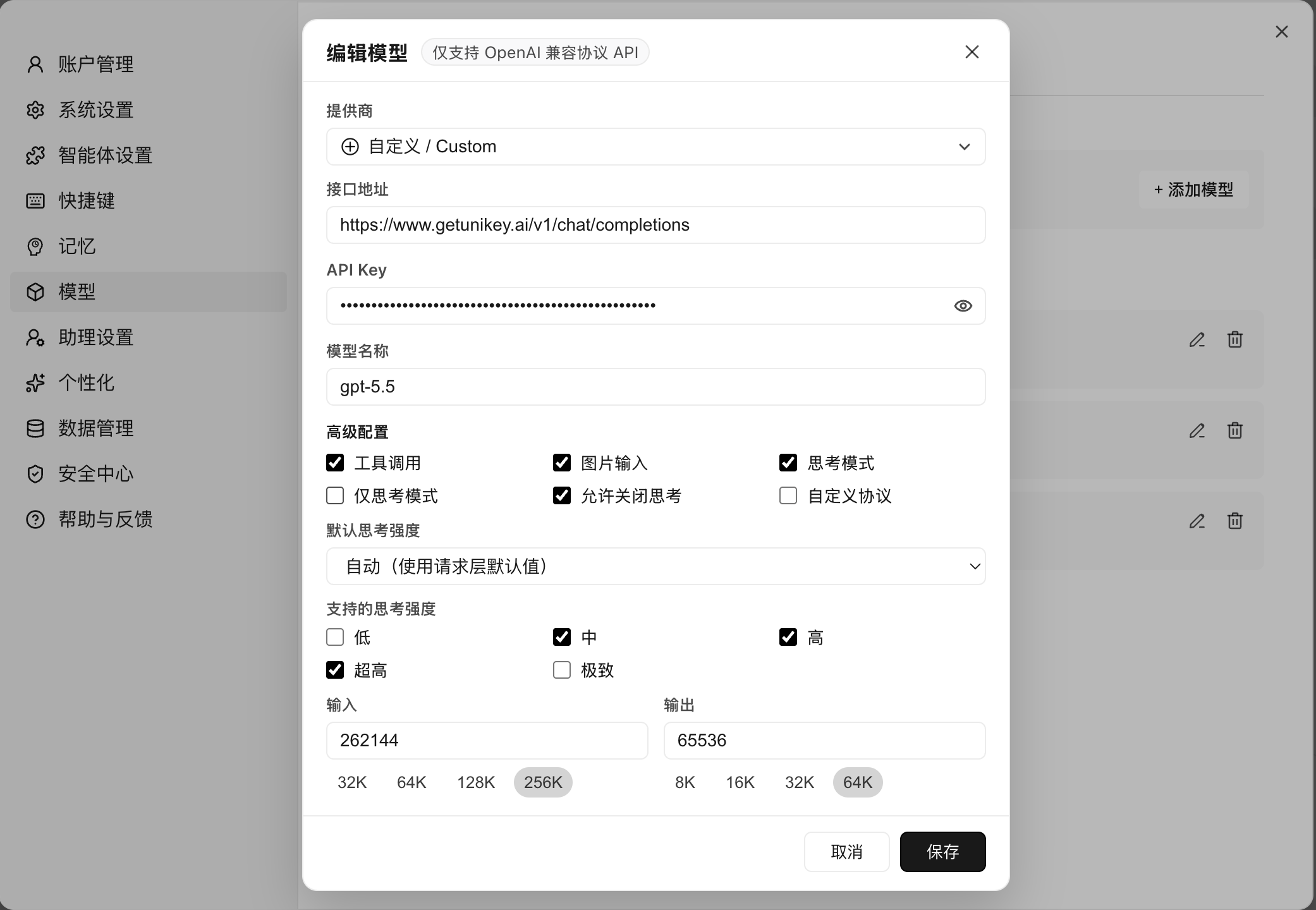
- In the model editor, enter the following values:
| Field | Value |
|---|---|
| Provider | Custom |
| API URL | https://www.getunikey.ai/v1/chat/completions |
| API Key | Your UniKey API key |
| Model name | For example, gpt-5.6-terra |
- Under Advanced settings, use these recommended values for the models in this guide:
| Setting | Recommended value |
|---|---|
| Tool calls | Enabled |
| Image input | Enabled |
| Reasoning mode | Enabled |
| Reasoning only | Disabled |
| Allow disabling reasoning | Enabled |
| Custom protocol | Disabled |
| Default reasoning strength | Automatic |
| Supported reasoning strengths | Medium, High, XHigh |
| Maximum input tokens | 262144 |
| Maximum output tokens | 65536 |
- Select Save.
- Repeat these steps for each UniKey model you want to use, then select the model in a WorkBuddy chat and send a short test message.
If a model does not support image input, tool calls, or reasoning, turn off the matching option for that model.
Method 2: Edit models.json directly
Use this method when you want to add several models at once.
- Fully quit WorkBuddy.
- Open the WorkBuddy model configuration folder:
~/.workbuddy/models.json
~ is your current user home folder. Before changing the file, make a manual backup by copying models.json to models.json.bak in the same folder.
- Replace the file contents with the configuration below.
- Replace every
PASTE_YOUR_UNIKEY_API_KEY_HEREvalue with your own UniKey API key. Do not change the model IDs unless you have confirmed their lowercase names on the UniKey pricing page.
[
  {
    "id": "gpt-5.6-terra",
    "name": "gpt-5.6-terra",
    "vendor": "Custom",
    "url": "https://www.getunikey.ai/v1/chat/completions",
    "apiKey": "PASTE_YOUR_UNIKEY_API_KEY_HERE",
    "supportsToolCall": true,
    "supportsImages": true,
    "supportsReasoning": true,
    "useCustomProtocol": false,
    "reasoning": {
      "supportedEfforts": ["medium", "high", "xhigh"]
    },
    "maxInputTokens": 262144,
    "maxOutputTokens": 65536
  },
  {
    "id": "gpt-5.6-sol",
    "name": "gpt-5.6-sol",
    "vendor": "Custom",
    "url": "https://www.getunikey.ai/v1/chat/completions",
    "apiKey": "PASTE_YOUR_UNIKEY_API_KEY_HERE",
    "supportsToolCall": true,
    "supportsImages": true,
    "supportsReasoning": true,
    "useCustomProtocol": false,
    "reasoning": {
      "supportedEfforts": ["medium", "high", "xhigh"]
    },
    "maxInputTokens": 262144,
    "maxOutputTokens": 65536
  },
  {
    "id": "gpt-5.5",
    "name": "gpt-5.5",
    "vendor": "Custom",
    "url": "https://www.getunikey.ai/v1/chat/completions",
    "apiKey": "PASTE_YOUR_UNIKEY_API_KEY_HERE",
    "supportsToolCall": true,
    "supportsImages": true,
    "supportsReasoning": true,
    "useCustomProtocol": false,
    "reasoning": {
      "supportedEfforts": ["medium", "high", "xhigh"]
    },
    "maxInputTokens": 262144,
    "maxOutputTokens": 65536
  }
]
- Save the file and restart WorkBuddy.
- Open Settings → Models to check that the new models appear, then select one in a chat to test it.
Troubleshooting
| Problem | What to check |
|---|---|
| Authentication error | Re-enter the UniKey API key and make sure it has no spaces or missing characters. |
| Model not found | Check the lowercase model ID on the UniKey pricing page. |
| Model does not appear | Confirm that models.json is valid JSON, then fully restart WorkBuddy. |
| A feature does not work | Disable the corresponding tool, image, or reasoning option and try again. |
When requesting help, replace the API key value with REDACTED before sharing any configuration file or screenshot.